
Find and open incoming requests
- Open an incoming onboarding request. There are two ways to do this:
- Click Review request from a Home tab notification in UpGuard. All UpGuard admins receive notifications on the Home tab any time a new request is submitted.
- Click Vendor Risk > Onboarding Requests and select the appropriate request. All active onboarding requests are listed here.
- A few things automatically happen when you open a request (you can update these attributes at any time):
- The request is marked as “in review”.
- You are automatically assigned to the request.
- A due date (one week out) is added.
- It is given a ‘medium’ priority rating.
🧠 You can also find onboarding requests by clicking: Vendor Risk > selecting a vendor > scrolling to Company Profile and clicking the Onboarding Request box.
Navigate requests
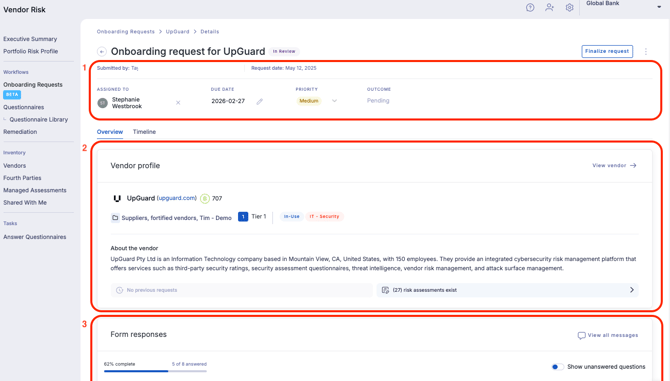
- Request details. These are automatically applied the first time someone opens a request (see above).
- Vendor profile. Provides basic information about the vendor, the option to monitor them, and, links to previous requests and risk assessments (if any are available).
- Form responses. Shows all the responses the respondee entered. Use messages to make notes on responses or send follow-up questions to the form’s submitter.
Assess and action incoming requests
You have two options for how to go about actioning requests: 1) decide on an outcome (e.g. recommended vs. not recommended) without evaluating and assessing the vendor or 2) evaluate and assess the vendor, then decide on an outcome for the request. We'll guide you through both options below:
- Open the request. If you do not need to monitor and assess a vendor, jump to step five to action the request.
- Click Assess vendor.
- Click Monitor and continue. You need to monitor a vendor before evaluating them with UpGuard.
- You’ll be taken to the Vendor Summary page where you can begin tiering, evaluating, and assessing the vendor as you normally would.
- When you’ve completed your evaluation and/or assessment, return to the onboarding request to complete the request.
- Click Finalize request.
- Link a risk assessment (if one applies).
- Select an outcome (the below are default outcomes, your team may have customized outcomes):
- Recommended
- Recommended with conditions
- Not recommended
- Add a comment if you’d like to add: more details for your requester or helpful reference information for anyone looking at this request later.
- Click Finalize request.
Your recommendation is logged and shared with the requester via email; you’ll be able to access completed requests from Onboarding Requests. You’ll also see an “Onboarding requests” column on the Vendor Risk>Vendors tab and, if a vendor has an associated onboarding request, you’ll see a notation in this column.