
Overview
Security Profile uses evidence to evaluate a vendor’s security posture against evaluation criteria (control templates) so that you can decide whether the risk they carry is acceptable to your organization. UpGuard has pre-built control templates aligned to the most common control frameworks, but you can also build your own template using our library of 1000+ checks.
Use Security Profile to:
- Evaluate and assess a vendor against criteria appropriate to their tier.
- Reach a defensible, documented decision on whether or not your org should work with a vendor.
- Review, edit, and publish AI assessments so that you have a shareable record of your evaluation.
🎵 Security Profile risk assessments have their own rating, separate from the vendor's Overall security rating. Vendor Risk: Overall Security Rating vs. Security Profile Rating explains how they differ.
🧠 Use Security Profile in Trust Exchange to run a self-assessment.
Navigate Vendor Risk's Security Profile
Security Profile on Vendor Risk is available for any vendors you’re currently monitoring.
Open Security Profile: Vendor Risk icon > Vendors tab > Select a vendor > Security Profile.
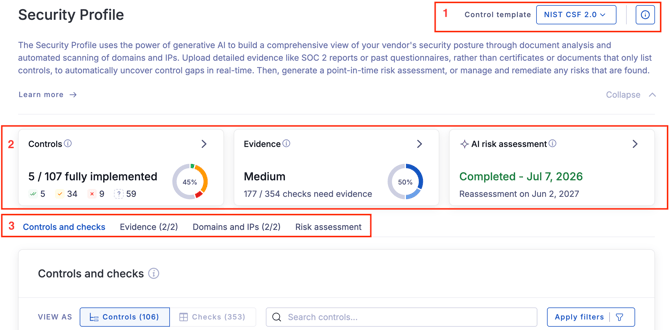
- Control template. This is the template the vendor is being evaluated against. This is determined by the vendor's tier by default but you can swap templates.
- Summary cards. Provides high-level insights.
- Controls: The percentage of controls that are fully, partially or not implemented, or that need evidence. This widget directly correlates with the applied control template.
- Evidence: The percentage of checks that have evidence. The goal is to have evidence for each check, so you want this widget to be at 100%.
- AI risk assessment: Tells you whether a risk assessment is not started, in progress, or completed.
- Workflow tabs. This is where you dig in and work through an evaluation.
- Controls and checks: Lists all controls and checks in the applied control template and if evidence is missing or they have been implemented.
- Evidence: Upload evidence or see what has been uploaded. You’ll also be able to send a gap questionnaire if needed.
- Domains and IPs: Shows all attributed domains and IPs. Use this to scope your assessment and select what is being assessed and continuously monitored.
- Risk assessment: Shows in progress and completed AI risk assessments.
🎵The Control Template Library page lists all available control frameworks and templates.
About controls and checks
The assigned control template dictates what controls and checks a vendor is being evaluated against. The Controls and checks tab shows what that criteria is, and how the vendor is performing against them, in two switchable views:
- Controls view. Lists all controls in a table. Each row shows the control, its status, and a count of how many of its checks have evidence. Click a row to expand it and review the associated checks.
- Checks view. Lists all individual checks in a table. Filters make it easy to segment checks so that you see just what you need (e.g. see all checks with critical risks).
Use the View as toggle at the top of the tab to switch between the Controls view and Checks view.
Control hierarchy
Security Profile uses a hierarchical structure to organize and categorize checks. From highest to lowest level:
| Term | Description |
| Domains | 7 top-level categories (ex: asset management, risk management). Domains are used strictly for organizational purposes. |
| Family | Subcategories within a domain (ex: DNS security, website security). Used strictly for organizational purposes. |
| Controls | An overall objective made up of one or multiple checks. These are what you see listed on the controls panel in Security Profile. |
| Checks | A specific criteria that contributes to a parent control. When there is corresponding evidence, checks are either marked as ‘passed’ or flagged as a risk (and assigned a severity). There are 1000+ available checks. |
| Citations |
The specific text, from Evidence, that the AI has used to determine whether that check was passed or if a risk was detected. Citations are available for all checks that the AI has marked 'passed' or 'risk detected'. You can exclude a citation so it’s no longer used as evidence for a check. Learn more at Vendor Risk: Work with evidence citations. |
Control statuses
Controls are assigned one of four statuses based on available evidence. Before evidence is added, the majority (or all) controls will say “No evidence”. That’s expected; statuses will start updating as you gather evidence.
| Control status | Definition |
| Fully implemented | All checks for a given control are met. |
| Partially implemented | Some checks for a given control are met, and some require further evidence. |
| Not implemented (risks found) | At least one risk was identified for a given control. |
| Evidence required | There is no evidence to inform status of a given control. |
Check Results
UpGuard scans evidence and uses our own automatic scanning to evaluate checks. Checks can have:
- No evidence: there is no evidence to evaluate if this check is a risk or passed.
- Risk detected: a risk associated with this check was found. You’ll see a severity associated with the detected risk.
- Check passed: no risks associated with this check were found.
🎵 You might have situations where more than one source of evidence applies to a check, with conflicting results. See How a check’s result is determined to learn about how UpGuard handles this.
Review checks
- Click the Vendor Risk icon in UpGuard’s left-hand navigation panel.
- Ensure you’re on the Vendors tab.
- Select a vendor (or monitor a new vendor).
- Select Security Profile from the expanded options under the vendor’s name in the left-nav.
- Use icons next to a Control to see if evidence is missing, if a control has associated risks, or if it’s been fully implemented.
- Click a control from the Controls list.
- Review icons to a check’s left to see if a check passed, is a risk, or is missing evidence.
- For checks marked as passed or with a risk: click into the check to see the
citation(s)* referencing the specific text, from uploaded Evidence, that was used to reach this result.
- Click Manage risk on checks where a risk is detected.
- Select Request remediation or Waive this risk. Each option takes you to to corresponding workflow: either risk remediation or risk waiver.
* If you find that a citation is incorrect or shouldn’t be used, click Exclude citation so that it doesn’t get used. For more information, see Vendor Risk: Work with Evidence Citations.
Change control template
Control templates are automatically applied to a vendor based on their tier. By default, when a vendor’s tier is changed, the corresponding control template is automatically assigned. However, you can also manually update the vendor’s template without changing their tier.
❗Manually changing a vendor’s control template removes it from the automatic update flow. Example: tier 3 vendors are assigned to the ‘Lite controls’ template. You make an update: tier 3 vendors now use the ‘Core controls’ template. UpGuard automatically updates your tier 3 vendors to the ‘Core controls’ template. This automatic change does not apply to vendors whose template was manually changed.
- Click the Vendor Risk icon in UpGuard’s left-hand navigation panel.
- Ensure you’re on the Vendor’s tab.
- Select a vendor (or monitor a new vendor).
- Select Security Profile from the expanded options under the vendor’s name in the left-nav.
- Click the dropdown showing the control template currently applied in the Controls upper-right-hand corner.
- Select a template from the dropdown.
- Select Switch template.
The list of controls will immediately update and you’ll see how the vendor performs against these controls.