
- Fragment 1: The trigger and list monitored vendors
- Fragment 2: Split data and add a filter
- Fragment 3: Do something
- Test and activate your workflow
This is the part in the process where you actually build a workflow in Risk Automations. If you haven’t already, read part 1 to understand why we’re building the way we are. The ‘why’ is what will help you most as you work towards doing this on your own.
🎵 There’s a lot of text here, but that’s because we’re providing a lot of context. We’re telling you exactly what to do and why you’re doing it. Follow these instructions and you will build a workflow and understand better what to do next time.
Fragment 1: The trigger and list monitored vendors
Each row from the table in the first part of this guide is going to be a node in our workflow. We’re starting with the first two table rows (nodes): the trigger node and action 1, listing all monitored vendors.
Trigger node
- Click Risk Automations from UpGuard’s left-hand navigation.
- Click Workflows.
- Click + Create workflow.
- Click + Add first step.
- Search for and select the Schedule Trigger node. This is it, you’re adding your trigger node! You’ll see a node editing panel open. This is where you’ll dictate the exact criteria for this trigger node. In this case, the nodes defaults actually work for us: its set to run once a day. We’ll just need to make one change.
- Click in the Trigger at Hour dropdown. Select 8am. Now, the node will run every day (including weekends) at 8am.
- Click Back to canvas. Don’t worry, your node’s settings are saved.
🎉 Your workflow has a trigger node! Whenever the condition in this node is met (in this case any time it's 8am), your workflow will run. All workflows need one of these. Next, we need to pull a list of all of your monitored vendors.
List monitored vendors
- Click the + to the right of your trigger node. This + is how we add our next node. See that line extending to the trigger node’s right? That shows you what the node is connecting to.
- Click UpGuard from the nodes panel.
- Search for and select List monitored vendors. The node’s editing panel will open, but we don’t need to make any changes this time. Read the node though — you can see that it’s pulling vendors and its job is to list them — exactly what we need. Click each dropdown if you’re curious about what else is possible. Exploring is highly encouraged.
- Click Back to canvas.
Right here you’ve already done something meaningful. You’re extracting the data you need. Now, we need to do something with that data.
Fragment 2: Split data and add a filter
The ‘list monitored vendors’ node is very good at its job (e.g. it gets you your monitored vendors), but its data isn’t clean or easy to work with. Even Risk Automations likes highly-parsable data. To get that we’re going to add a ‘Split Out’ node.
Split out
- Click the + to the right of your List monitored vendors node.
- Search for and select Split Out in the node panel. You’re an expert now, you know the node editing panel is going to open.
- Enter ‘vendors’ in the Fields to Split Out field. This is going to make it easy for Risk Automations to parse vendors on the vendor’s list.
- Click Back to canvas.
If node
Now it’s time to funnel data. We’ll do that with an If node. This is our switch rail, it funnels each data point (vendors in this case) down the appropriate path.
- Click the + to the right of your Split Out node.
- Search for and select the If node. First thing, we need to fix our view so we can work with the node better.
- Make the input panel (the left panel) bigger: hover over the edge of the middle node panel and drag it to the right. You should see the Input section get bigger.
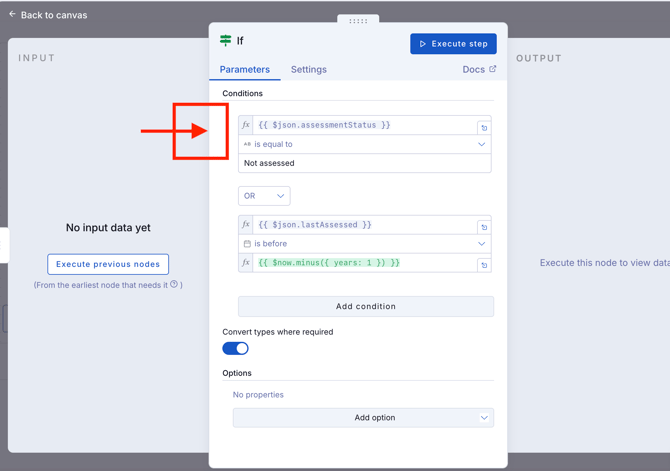
- Click Execute previous nodes. We just had Risk Automations execute all nodes that come before this one in the workflow. The result: Risk Automations now knows what type of information each node is passing to the next. In this case, the If node now knows what data it will get from the Split Out node. You should see a list of options for what to work with.
- Drag and drop assessmentStatus (it’s at the bottom of the Input section) onto the value1 field. You’ll see color-coded json text appear when you do this correctly.
- Type Not assessed (case sensitive) in the value2 field. This condition now says: look at the assessment status field. If the assessment status is ‘Not assessed’ grab that vendor. Check out the note at the bottom of this section to find out how
- Click Add condition.
- Change the AND dropdown to OR. Vendors only need to meet one of these two conditions, not both of them.
- Drag and drop assessmentStatus from the Input section onto the value1 field.
- Click the Is equal to field, hover over Date & Time, and select is before. We’re creating a time based condition here. This is how we’ll get vendors whose assessments are more than 12 months old. We’ll need some javascript for this next part, but built in AI will help us with that.
- There is an empty field below or to the right of the ‘is before’ field. Hover over it. Make sure Expression is selected.
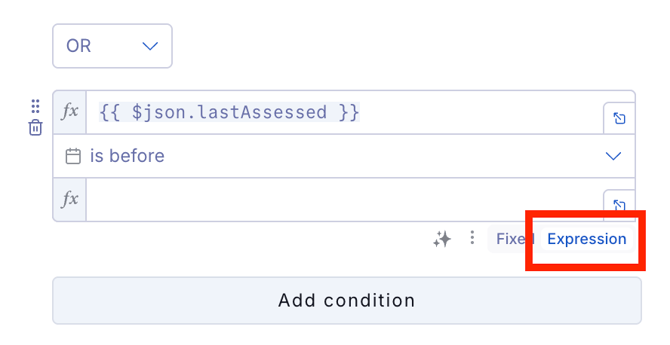
- Type
{{ $now.minus({ months: 12 }) }}in the field under ‘is before’. - Toggle on Convert types where required. Toggling this on makes it so that the data is all in the correct format to execute the function.
- Click Back to canvas. There’s probably an orange triangle on the node, that’s okay.
Big moment: your ‘If’ node has two lines extending to the right. One line for ‘true’ and one line for ‘false’. That’s it, you’ve created a fork. Any vendors that meet one of the node’s two conditions goes down the ‘true’ path. Any vendors that don’t match that criteria go down the ‘false’ path.
🧠 UpGuard-product nodes in Risk Automations correspond with an UpGuard API endpoint. You can use our API documentation to find out what data each endpoint has. In this case, you’d see that this endpoint has ‘Not assessed’ data and that’s how you would learn what to type if you were doing this on your own.
You’re almost done and the rest is almost too easy.
Fragment 3: Do something
We have our vendors, we’re dividing them into vendors who need an assessment and ones that don’t. Now, we need something in the UI to tell us that a vendor needs an assessment. To do that, we’ll have Risk Automations add vendor labels to qualifying labels.
- Click the + to the right of false on the If node. We’re going to do the really easy part first.
- Search for and select the No Operation, do nothing node.
- Click Back to canvas. That’s it. If a vendor doesn’t need an assessment, we don’t have to do anything. This node is just a nice end cap.
- Click the + to the right of true on the If node.
- Click UpGuard from the nodes panel.
- Search for and select Update vendor labels.
- Drag and drop primary_hostname from the Input panel into the Vendor Primary Hostname field (third field down).
- Type ‘Needs to be assessed’ in the Labels field. This has nothing to do with API or javascript. This is the text label that will be added to vendors that need to be assessed. You can add whatever text you want here.
- Click Back to canvas.
- Update your workflow’s name from My workflow to Vendor assessment required.
- Click Save changes. This is really important. Make sure you’re saving changes as you go.
You are done! You built your workflow, vendors that don’t have an assessment or that have one that is 12+ months old will get a ‘Needs to be assessed’ label. Don’t have a ‘Needs to be assessed label’ pre-created? Not a problem, Risk Automations will create it the first time it runs and a vendor needs the label.
Test and activate your workflow
Let’s make sure everything is working correctly.
- Click Execute workflow. When you click this, Risk Automations will run the workflow. This is not a dummy run, it will execute each node and if there are vendors that meet the ‘true’ criteria, they’ll have a ‘Needs to be assessed’ label added.
You did it, you made your first workflow! Now, when you’re ready, toggle on the Inactive toggle at the top of the workflow. That’ll activate your workflow and it’ll run daily at 8am for as long as the workflow is active.