- What is the Threat Posture?
- The posture summary
- Top insights
- Filter the queue to an insight
- How to use the Threat Posture
- Help us improve
What is the Threat Posture?
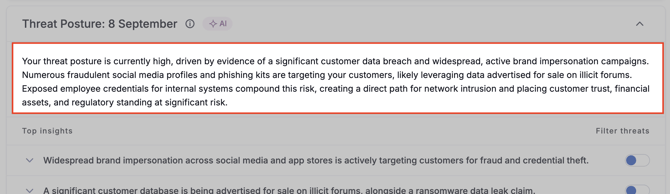
Threat Posture is a plain-language read of your current threat exposure and the main factors driving it. It sits above your threat queue in Threat Monitoring, so you get the headline before you work through individual threats.
Threat posture is produced by the UpGuard Security Advisor. While the AI Threat Analyst works at the level of individual signals, the Security Advisor works one level up; looking across all of that triaged activity to show your overall posture and what's driving it.
Threat Posture refreshes weekly, and whenever you add a new Transform — not on every incoming threat. The panel is dated so you can see how current it is, for example Threat Posture: 8 September. Collapse the panel at any time to focus on the queue.
❗ Threat Posture and its recommended actions are AI-generated — treat the recommended actions as guidance to inform your response, not a substitute for your own judgment.
The posture summary
At the top of the panel is a short summary of your overall posture — the headline level and the main factors behind it, written in everyday language. Read it first for a quick sense of where you stand before you dig into the detail.
Top insights
Below the summary are the Top insights — the most important themes the Security Advisor has found across your threat data, most significant first. Select any insight to expand it into three parts:
- What was detected — the evidence behind the insight, and what the data is showing.
- Why it matters — the risk this creates, and the potential impact if it isn't addressed.
- Recommended action — the suggested next step to reduce the risk.
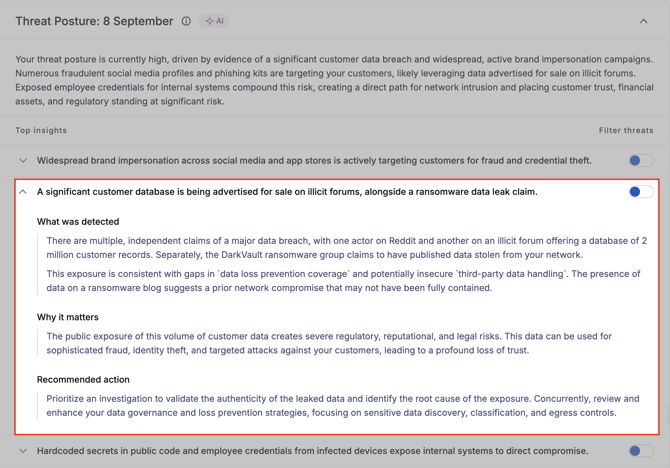
Reading an insight top to bottom takes you from what's happening, to why it matters, to what to do next — without having to interpret the raw threat data yourself.
Filter the queue to an insight
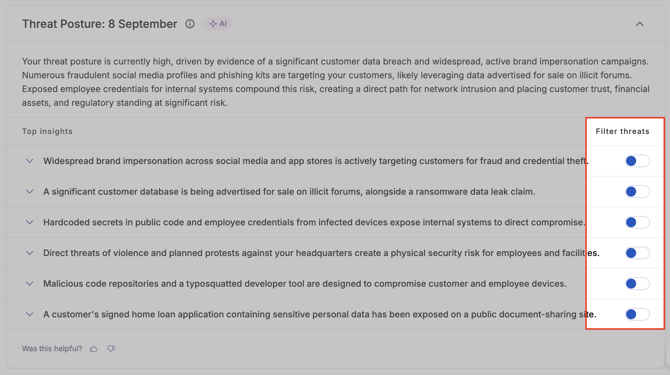
Each insight has a Filter threats toggle on the right. Enable it and your threat queue narrows to just the threat events behind that insight, so you can go straight from the insight to the specific threats and start actioning them.
When a filter is active:
- A chip appears above the queue naming the insight theme you've filtered by — for example, Filter: Brand & customer exploitation.
- The tab counts update to show how many of your threats relate to it.
- For example, Open (19/51) means 19 of your 51 open threats belong to that insight.
- The filter applies across the Open, Investigating, Remediating, and Closed tabs.
To clear the filter, disable the toggle or select the ✕ (Clear insight filter) on the chip. You can also combine an insight filter with the standard queue filters — date, transforms, severity, source, etc.
🎵 Filtering by an insight only changes what you're looking at. It doesn't action, close, or alter any threats.
How to use the Threat Posture
- Read the summary for your headline posture.
- Expand the top insight to understand what's driving it.
- Enable Filter threats to see the related threats in the queue.
- Work through those threats — investigate, remediate, or dismiss.
- Move down the list and repeat.
Help us improve
Under the insights you'll find a Was this helpful? thumbs up / thumbs down. Your feedback helps us tune the analysis, so let us know if an insight was useful or missed the mark.